

Introduction
In this guide, we’ll cover how to set up appointments with different durations in Simply Schedule Appointments while ensuring that availability stays in sync across your appointment types.
How SSA Handles Appointment Durations
Each appointment type in SSA can have one fixed duration. There’s no built-in option for customers to flexibly select the start and end date/time for their session length from within a single booking form.
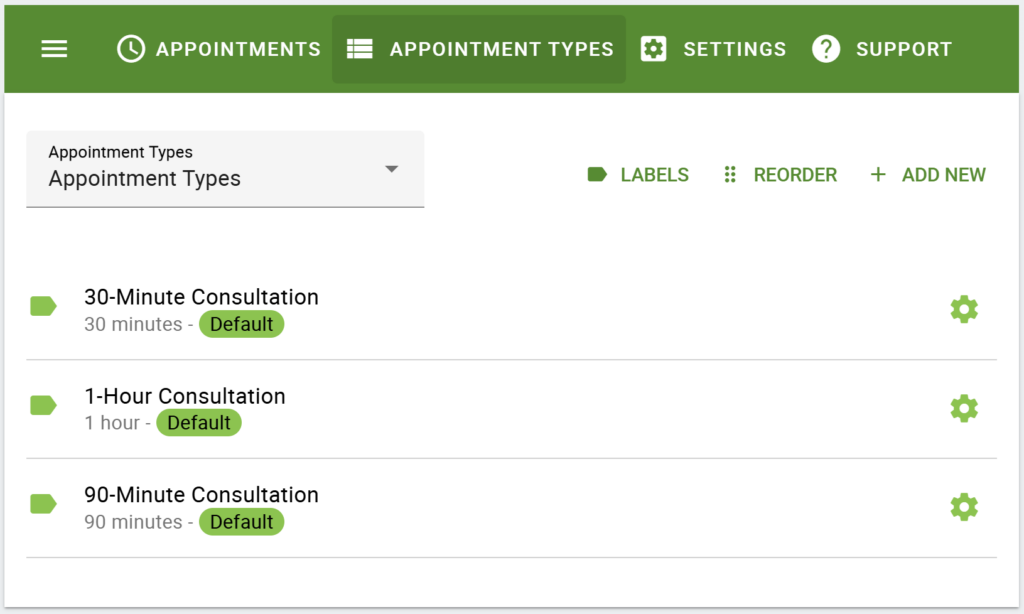
To offer multiple lengths for a service or appointment, create one appointment type per duration. This works well for a wide range of use cases:
- Service providers offering 30-minute, 1-hour, or 90-minute sessions
- Conference rooms or studios that are bookable by the hour or half-day
- Equipment rentals available in 2-hour or 4-hour blocks
Setting Up Multiple Appointment Types with Varying Durations
You can follow the steps outlined below for setup:
- Go to WP Admin > Appointments > Appointment Types and click Add New.
- Give the appointment type a clear name that reflects the length, like 30-Minute Consultation or 1-Hour Session, so customers know what they’re choosing.
- Under the Basics tab, set the Duration to the session length you want.
- Set up your availability and other settings for your appointment type.
- Repeat for each additional duration you want to offer by cloning the previously created appointment type.
How SSA Prevents Double-Booking Across Appointment Types
For Single Service with Varying Durations
By default, when someone books a time slot in one appointment type, SSA automatically blocks the same time across all your other appointment types. That way, your 30-minute and 1-hour calendars stay in sync with no extra setup required.
For example, if a 1-hour session is booked at 2:00 PM, that time will no longer be available in your 30-minute type either. This works well with a single service or appointment.
For Multiple Services with Varying Durations
If you’re looking to present varying durations for multiple bookable services, such as several conference rooms or rental units, you can use the Resources feature to apply capacity limits to your specific appointment types.
For example, if you have one conference room bookable in 1-hour or 2-hour blocks, you can assign a shared resource to both appointment types so SSA enforces a single booking at a time across both appointment types belonging to the same conference room, regardless of which duration a customer picks.
The same can be done for your second conference room, and the availability of both conference rooms will remain independent of each other via separate resources, while providing clients the option to select varying durations for each.
Related Guides
-

Recurring Appointments and Booking Multiple Appointment Types
-
How to Fix “There Are No Available Appointments”
-
Reschedule/Cancel Link 404 Error
-
Migrate Using Import and Export

