

Introduction
In this guide, we will cover why all-day events on your Google Calendar may not block availability in Simply Schedule Appointments, and what to do about it.
Why All-Day Events Default to “Free”
When you create an all-day event in Google Calendar, Google automatically sets its status to Free. This is intentional: Google assumes that all-day events like birthdays, reminders, or notes about a friend being in town are informational and shouldn’t automatically block your schedule for other events.
Because of this default, Simply Schedule Appointments doesn’t detect them due to the Free status and treats them as non-conflicting.
How SSA Uses Busy and Free Status
If you have the Google Calendars check for conflicts option enabled for an appointment type, SSA checks your Google Calendar for conflicts before showing available time slots on the booking calendar. It only blocks off time slots for events with the Busy status.
Since all-day events default to Free, SSA ignores them and leaves those time slots open for booking.
How to Fix It
You need to update the status for the all-day event in order for SSA to detect it. For that, you need to take the following steps:
- Open the all-day event in Google Calendar.
- Click the edit (pencil) icon to open the event editor.
- Find the Free/Busy dropdown in the event details.
- Change the status from Free to Busy.
- Save the event.
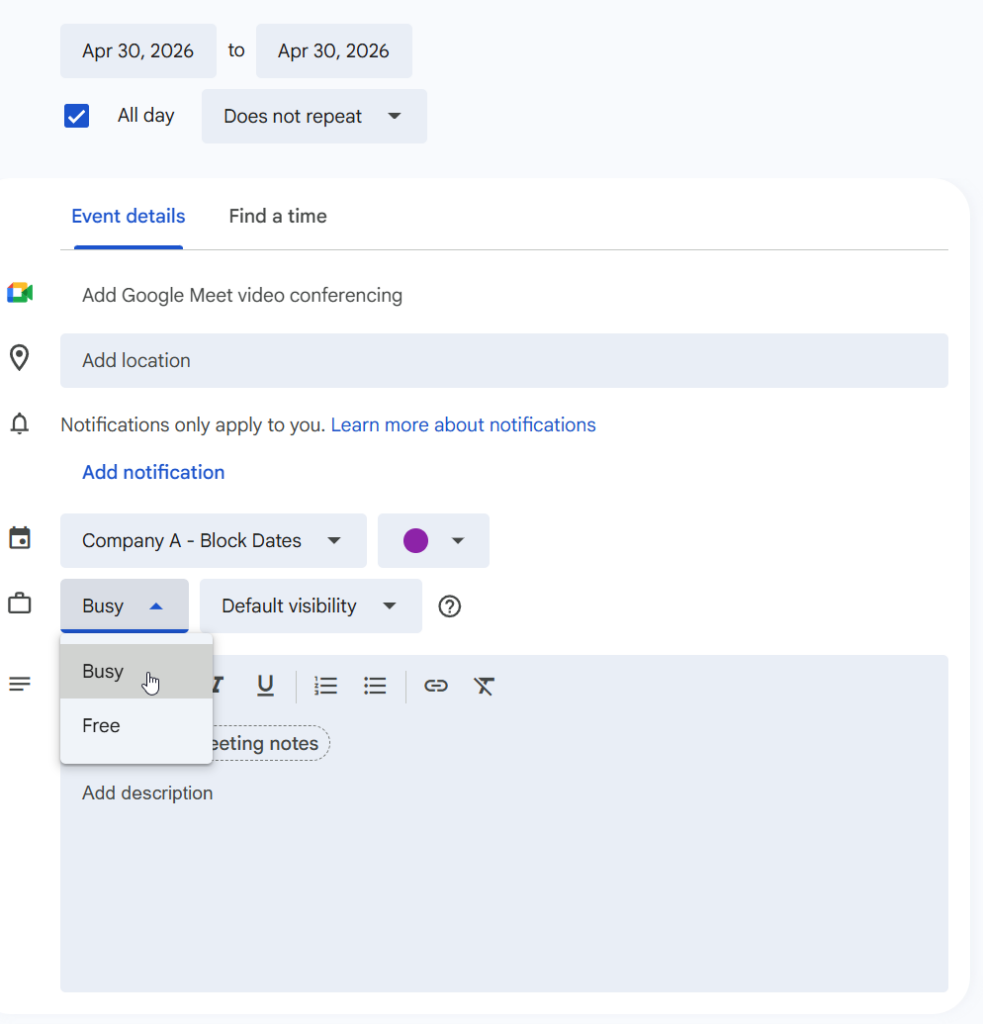
How Long Until the Change Takes Effect
After updating the event, SSA will recognize it as a conflict on its next refresh cycle. By default, the Refresh Rate is set to check every few minutes, so it may take a short time before the time slots appear blocked on your booking calendar.
To check or adjust your Refresh Rate, go to SSA Settings > Google. For more details, see our Google Calendar Settings guide.
All Day Event Still Not Blocking After Updating?
If you’ve changed the event to Busy and time slots still aren’t being blocked after the refresh rate time, review the Google Calendar Not syncing or Checking guide to troubleshoot.
Related Guides
-

Google Calendar Not Syncing or Checking for Conflicts
-
Google Calendar FAQ
-
400 redirect_uri_mismatch Error
-
“Google hasn’t verified this app” Error or Periodic Disconnecting

