

Introduction
Simply Schedule Appointments doesn’t have a built-in pop-up or lightbox display mode, but you can get that effect by placing the booking calendar inside an Elementor pop-up.
The Elementor Pro (Advanced Solo) or higher version is required for the pop-up builder.
Using Elementor Pro’s Pop-up Builder
This is the most direct route if you already have Elementor Pro (Advanced Solo), since Popup Builder is a Pro-only feature.
- In your WordPress dashboard, go to Elementor > Editor > Templates > Popups and click Add New Popup.
- Name the pop-up and click on Create Template.
- When the template library opens, click the X in the top-right corner to close it and start with a blank canvas.
- In the Elementor editor, search the widget panel for the Schedule an Appointment widget and drag it into the pop-up.
- Configure the widget’s Content and Style settings the same way you would on a regular page. See our Elementor Module guide for what each option does.
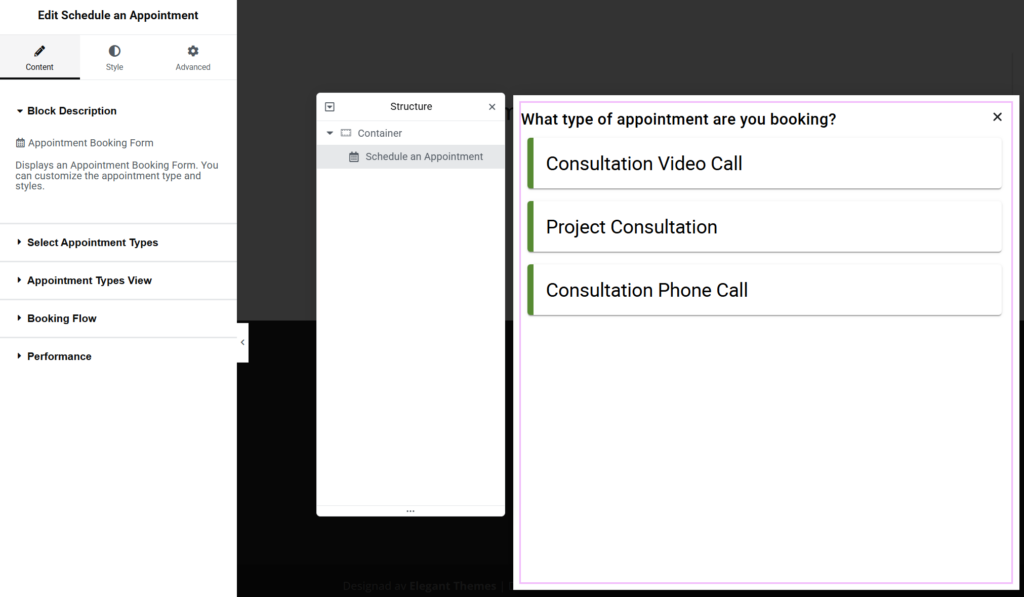
Click Publish once you have configured the module settings. A Publish Settings dialog will open with three tabs:
- Conditions – choose which pages the pop-up appears on (for example, Entire Site, or a specific page).
- Triggers – set what opens the popup, such as On Click or On Page Load.
- Advanced Rules – optional extra requirements for when the pop-up should show.
Click Save & Close when done.
If you chose the On Click trigger:
- Add a Button widget to the page where you want the trigger.
- In the button’s Content tab, find the Link field. Click the stack icon on the right side of the field to open the dynamic tags options.
- Select Popup, then choose the popup you created from the dropdown. Once done, publish the changes.
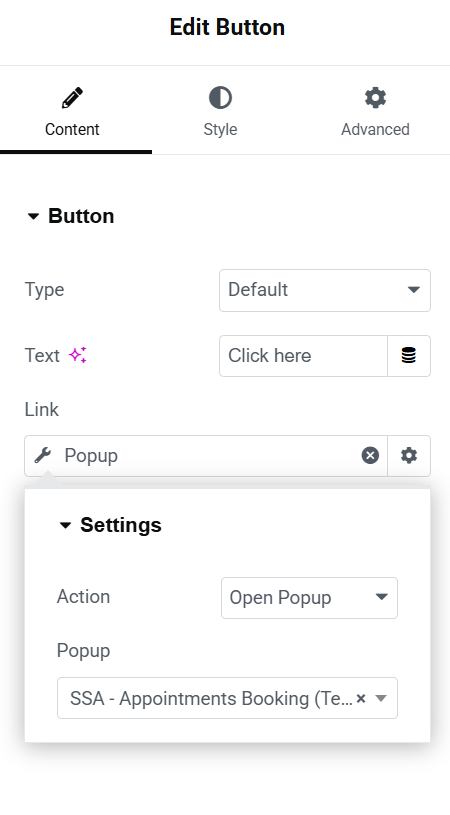
The button click should trigger a pop-up that displays the booking calendar from the Simply Schedule Appointments within it.
Other Popup Plugins
You can achieve the same effect with any pop-up plugin. Popular options include:
Related Guides
-

MemberPress Appointments for Memberships
-
Appointments Tab for Member Dashboards
-
MemberPress FAQ
-
Let Employees Manage Admin Page
