

Introduction
If you have repeat no-shows or want to prevent specific people from booking again, Simply Schedule Appointments doesn’t have a built-in blocklist feature. However, we provide a mini-plugin that allows you to block users by their email address.
This guide covers how to install and configure the email-blocking mini-plugin, what blocked users will see when they try to book, and alternative approaches you can consider.
When to Use Email Blocking
This mini-plugin is helpful when:
- You have customers who repeatedly book appointments and don’t show up
- You’re receiving spam bookings from specific email addresses
- You need to prevent a particular person from booking
For general spam prevention, SSA already has built-in protection because it uses an iframe to display the booking form. Most spambots can’t detect forms inside iframes. See our guide on Spambots & CAPTCHA for more details.
Installing the Email-Blocking Mini-Plugin
We’ve created a video walkthrough showing every step of the setup process.
Step 1: Download the Plugin
First, download the mini-plugin.
Step 2: Install the Plugin
- Log in to your WordPress dashboard as an administrator
- Go to Plugins > Add New Plugin > Upload Plugin > Choose File
- Upload the downloaded zip file
- Click Install Now, then Activate
The mini-plugin should now appear in your list of installed plugins.
Step 3: Configure Blocked Email Addresses
- Go to Plugins > Plugin File Editor or Tools > Plugin File Editor.
- From the “Select plugin to edit” dropdown, select the email-blocking mini-plugin “SSA Customization – Limit Bookings by Email Address”.
- In the plugin code, find the
$blocked_emailssection - Enter the email addresses you want to block inside the single quotation marks
- Next to
$error_message, enter the message blocked users will see (inside the single quotation marks) - Click Update File to save your changes
What Blocked Users Experience
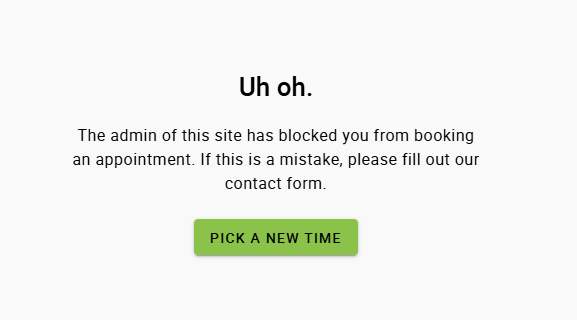
When someone with a blocked email address tries to book an appointment, they’ll see the custom error message you configured in the plugin. They won’t be able to complete the booking.
The booking form will still display normally, but after they enter their email address and try to proceed, the error message will appear and prevent them from finalizing the appointment.
Alternative Approaches
Depending on your situation, you may want to consider these alternatives:
Block by IP Address
If you need to block someone regardless of what email they use, you can block their IP address using a security plugin like WordFence.
Require Login to Book
If you’re using a membership or login system on your WordPress site, you can restrict the booking calendar to logged-in users only. This adds a layer of accountability since users must have an account to book.
Related Guides
-

MemberPress Appointments for Memberships
-
Appointments Tab for Member Dashboards
-
ssa/appointments/customer_information/get_defaults Filter
-
ssa/templates/get_template_vars Filter
